
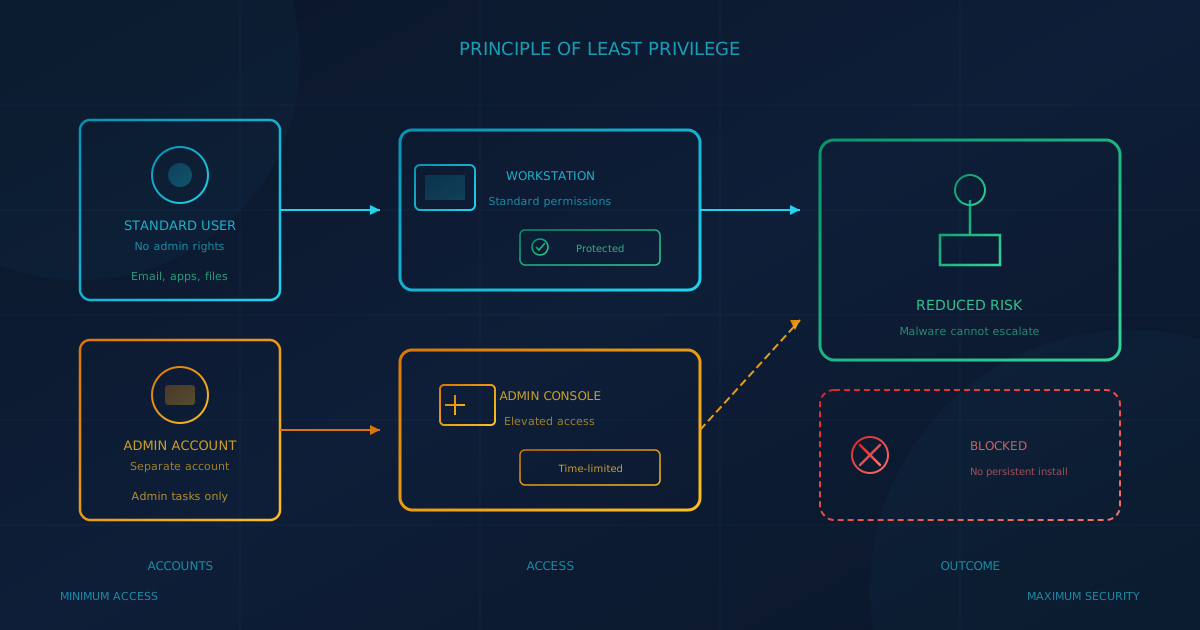
Least privilege for small business is the practice of giving each user only the access needed for their job and nothing more. According to the NIST Computer Security Resource Center, least privilege means "a security architecture is designed so that each entity is granted the minimum system resources and authorizations that the entity needs to perform its function." For many small and mid-sized businesses in Canada and the US, the simplest and highest-impact step toward least privilege is removing local administrator rights from everyday user accounts.
This guide explains what local admin rights are, why they create risk, how to separate admin accounts from regular work, how businesses handle legitimate software needs without giving everyone admin access, and how to roll out the change without disrupting operations.
What are local administrator rights?
A local administrator account on a Windows computer has full control over that device: it can install and remove software, change system settings, disable security tools, and access all files. When an employee logs in with an account that has local admin rights, every program they run inherits those permissions. That includes browsers, email clients, and any malware that tricks them into clicking a bad link.
The Canadian Centre for Cyber Security's Baseline Cyber Security Controls for Small and Medium Organizations addresses this directly: "Organizations should provision accounts with the minimum functionality necessary for tasks and, in particular, should restrict administrator privileges to an as-required basis."
Why do admin rights increase risk?
When malware runs on a computer with admin rights, it inherits those rights. This lets it install itself persistently, turn off antivirus or endpoint protection, modify system files, and spread to other devices on the network. The same CCCS baseline controls document states that organizations should "only permit administrator accounts to perform administrative activities (and not user-level activities such as accessing email or browsing the web)."
Consider what happens in each scenario:
- User without admin rights clicks a malicious link: malware attempts to run but cannot install system-level persistence, cannot disable security software, and may be logged or flagged for review.
- User with admin rights clicks the same link: malware installs itself as a service, disables or evades endpoint protection, creates new local accounts, and may move laterally to other systems before anyone notices.
The difference is not whether an attack happens but how much damage it can do when it does. Removing admin rights does not prevent phishing or malware, but it limits the blast radius when those controls fail.
How does separate admin account usage work?
The standard practice is for IT staff and anyone who genuinely needs administrative access to have two accounts: a regular account for email, browsing, and everyday work, and a separate admin account used only for administrative tasks. Microsoft's guidance on best practices for Microsoft Entra roles states: "Least privilege means you grant your administrators exactly the permission they need to do their job."
This separation matters because most attacks start with phishing or malicious websites. If an IT administrator reads email and browses the web with the same account that has domain admin rights, a single compromised link can give an attacker control of the entire network. With separate accounts, the admin account is only used in controlled contexts, dramatically reducing its exposure.
Our Microsoft 365 security checklist recommends keeping the number of Global Administrators to fewer than five people, with each admin using a separate admin account for admin work.
How do employees install software without admin rights?
The most common objection to removing admin rights is practical: employees sometimes need to install software. Legitimate needs include new business applications, browser updates, and specialized tools for particular roles. There are several ways to handle this without giving everyone permanent admin access:
Request and approval process
Employees submit a request when they need software. IT reviews the request, checks for known security issues, and either installs it remotely or grants temporary access. This adds a small delay but creates a record of what is installed and by whom.
Approved software catalog
IT maintains a list of pre-approved applications that can be deployed automatically or on request. Users can install anything on the list without waiting. New software goes through a review before being added.
Temporary elevation tools
Several tools let IT grant temporary admin rights for a specific task or time period. Windows Local Administrator Password Solution (Windows LAPS) is Microsoft's built-in option for managing local admin passwords. According to Microsoft's LAPS documentation, LAPS "automatically manages and backs up the password of a local administrator account" and helps close the gap where "local administrator accounts often share the same password across many devices, which bad actors can exploit to move laterally across your environment."
With LAPS, IT can retrieve a unique admin password for a specific device when needed. According to the Microsoft LAPS overview, LAPS "automatically manages and backs up the password of a local administrator account" and regularly rotates each device's password. This is far safer than sharing a single admin password across all devices or leaving users with permanent admin rights.
How do you roll out least privilege for small business safely?
Removing admin rights overnight without preparation will generate a flood of support tickets and frustrated employees. A phased rollout minimizes disruption:
- Inventory current state. Before changing anything, document who currently has local admin rights and why. Many businesses discover former employees, contractors, or temporary fixes that were never cleaned up. Our guide to access reviews covers how to find accounts that have outlived their purpose.
- Identify legitimate needs. Some roles genuinely need elevated access: IT staff, developers, and employees who run specialized software that requires admin rights. Document these exceptions with a business justification and a review date.
- Set up your support process. Before removing rights, ensure IT has a documented process for handling software requests and temporary elevation. Test it with a few friendly users first.
- Pilot with a small group. Start with a department that has straightforward software needs. Watch for problems, refine the process, and gather feedback before expanding.
- Communicate before rollout. Let employees know what is changing, why it matters, and how to request software they need. Most resistance comes from surprise, not the policy itself.
- Expand gradually. Roll out to additional groups over weeks, not all at once. Fix issues as they arise before scaling further.
- Review exceptions regularly. Anyone who still has admin rights should be reviewed periodically. Needs change; exceptions that made sense a year ago may no longer apply.
What mistakes should you avoid?
Several common missteps undermine least privilege implementations:
- No support process before rollout. Removing admin rights without a clear way to handle legitimate requests creates frustration and shadow IT workarounds.
- Exceptions without review dates. Every exception should have a documented reason and a date when it will be reconsidered. Permanent exceptions tend to accumulate.
- Shared admin passwords. A single admin password shared across all devices is almost as risky as giving everyone admin rights. Tools like Windows LAPS provide unique, rotating passwords per device.
- IT admins using admin accounts for email. The people most likely to be targeted by phishing are the ones with the most access. Separate admin accounts, used only for admin tasks, reduce this risk.
- Skipping communication. Employees who understand why a policy exists are more likely to comply and less likely to find workarounds.
Our article on employee onboarding and offboarding for IT describes how a standard operating procedure helps provide account access on the way in and, on the way out, verify which systems the employee had access to and revoke that access.
How does least privilege fit with other controls?
Least privilege is one layer in a broader security approach. It works alongside:
- Endpoint detection and response (EDR): detects and contains threats that get past other controls. Our EDR vs MDR guide explains the difference between the tool and the service.
- Multifactor authentication (MFA): protects accounts even if passwords are compromised.
- Conditional Access: enforces policies based on user, device, and location. Our Conditional Access guide covers the starter policies Microsoft recommends.
- Regular access reviews: ensures access stays appropriate as roles change.
None of these controls works in isolation. Least privilege limits damage when other controls fail; EDR detects threats that slip through; MFA and Conditional Access protect the accounts that have elevated rights.
What questions should you ask your IT provider?
If you work with an IT provider or managed service provider, these questions can clarify your current state:
- How many of our users have local admin rights on their workstations?
- Do IT staff use separate admin accounts for administrative tasks, or do they use the same account for email and browsing?
- How do we handle software installation requests from users who do not have admin rights?
- Are we using Windows LAPS or a similar tool to manage local admin passwords?
- When was the last time we reviewed who has elevated access?
Cyber Unit's managed IT services include user provisioning, device setup, and security configuration. Cyber Unit's cybersecurity services include EDR/MDR with 24/7 SOC monitoring, covering the detection layer that complements least privilege controls.
One step you can take today
Least privilege is a durable control that limits the damage from any attack that targets user accounts or endpoints. Start by asking your IT lead or provider how many users currently have local admin rights and whether that number matches a documented list of people who genuinely need them. If the answer is unclear, an inventory is the first step.
If you are unsure where your business stands on access controls and other security areas, a free cybersecurity assessment takes about five minutes, covers 22 security areas, and runs entirely in your browser with no signup required.
This article is intended for general informational purposes only and does not constitute professional security, legal, or compliance advice. The guidance in this article is based on publicly available documentation from NIST, the Canadian Centre for Cyber Security, and Microsoft as of the date of publication. Organizations should consult qualified IT and cybersecurity professionals before making changes to access controls and should test changes in a controlled environment before broad rollout.