
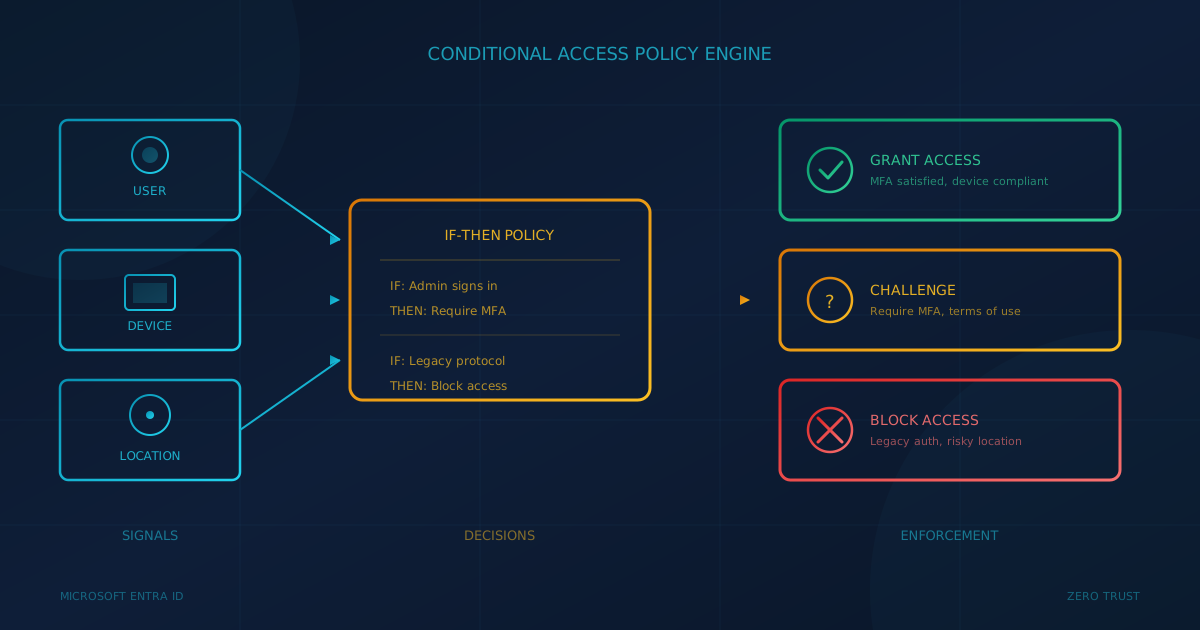
Conditional Access for small business is Microsoft's tool for controlling who can sign in to your company's Microsoft 365 tenant and under what conditions. According to Microsoft's Conditional Access documentation, Conditional Access is the "Zero Trust policy engine taking signals from various sources into account when enforcing policy decisions." In plain terms: it lets you write rules like "require MFA for everyone," "block sign-ins from countries you don't operate in," or "only allow access from company-managed devices." If your business uses Microsoft 365 Business Premium, you already have the license you need.
This guide explains what Conditional Access does in everyday language, which license includes it, how it differs from security defaults, and which policies Microsoft recommends as a starting point. Settings and licensing names change, so check current Microsoft documentation before making changes to your tenant.
What does Conditional Access do?
Conditional Access evaluates signals about a sign-in attempt and decides whether to allow, block, or challenge it. Microsoft describes Conditional Access policies as "if-then statements: if a user wants to access a resource, then they must complete an action." The signals, decisions, and enforcement work together:
- Signals: Who is signing in (user or group), what they are trying to access (application), where they are (IP address or named location), what device they are using (platform, compliance status), and how risky the sign-in appears (risk level, if you have the P2 license).
- Decisions: Block access entirely, or grant access with conditions such as requiring multifactor authentication, requiring a compliant device, or requiring a Microsoft Entra hybrid joined device.
- Enforcement: If the conditions are met, access proceeds. If not, the user is blocked or prompted to satisfy the requirement.
The result is more granular control than a simple on-or-off MFA switch. You can require phishing-resistant authentication for administrators while allowing app-based MFA for everyone else, or block legacy protocols that do not support MFA at all.
Which license do you need for Conditional Access?
Conditional Access requires Microsoft Entra ID P1. According to Microsoft's licensing documentation, "Entra ID P1 is also included in Microsoft 365 Business Premium for small to medium businesses." The same page confirms that "Customers with Microsoft 365 Business Premium licenses also have access to Conditional Access features."
Risk-based policies (blocking or challenging sign-ins based on sign-in risk or user risk) require Microsoft Entra ID P2, which is not included in Business Premium. Microsoft's documentation notes that "Risk-based Conditional Access policies require Microsoft Entra ID Protection, which is a Microsoft Entra ID P2 feature." If risk-based policies matter to your business, you would need to add standalone P2 licenses or a plan that includes them.
What is the difference between security defaults and Conditional Access?
Security defaults are a free, pre-configured set of protections that Microsoft turns on by default for new tenants. According to Microsoft's security defaults documentation, they include requiring all users to register for MFA, requiring administrators to do MFA, prompting users for MFA when necessary, blocking legacy authentication, and blocking device code flow.
Conditional Access is more flexible but requires a P1 or P2 license. Microsoft's guidance is clear: "If you're an organization with Microsoft Entra ID P1 or P2 licenses, security defaults are probably not right for you. If your organization has complex security requirements, you should consider Conditional Access."
The two cannot run together. Microsoft states that "Conditional Access and security defaults aren't meant to be combined because creating Conditional Access policies prevents you from enabling security defaults." If you disable security defaults to use Conditional Access, you need to create policies that cover the same ground, or you lose those protections.
What policies should a small business start with?
Microsoft publishes Conditional Access templates organized by category. The "Secure foundation" category lists the policies Microsoft recommends as the base for all organizations. The key starter policies are:
- Require multifactor authentication for admins. Administrators have elevated access and are high-value targets. Requiring MFA every time they sign in is the most important single policy.
- Require multifactor authentication for all users. This extends MFA protection to everyone in the tenant, not just administrators.
- Block legacy authentication. Legacy protocols (such as older mail clients using basic authentication) do not support MFA. Microsoft's security defaults documentation says "most compromising sign-in attempts come from legacy authentication." Blocking it closes that gap.
- Require compliant or Microsoft Entra hybrid joined device or multifactor authentication for all users. This policy adds a device requirement, ensuring users either sign in from a managed device or satisfy MFA.
Risk-based policies (require MFA for risky sign-ins, require password change for high-risk users) appear in Microsoft's Zero Trust template category but require P2 licenses. If you have only P1, you can still implement the foundational policies above.
Our Microsoft 365 security checklist covers these same settings as part of a broader tenant review, including checking whether security defaults are enabled or Conditional Access policies require MFA for all users.
How do you roll out Conditional Access safely?
A misconfigured Conditional Access policy can lock out users or administrators. Microsoft provides several features to test before enforcing:
Report-only mode
According to Microsoft's documentation on report-only mode, "policies in report-only mode" let administrators "test most Conditional Access policies before enabling them." The system evaluates the policy against real sign-ins and logs what would have happened, but does not actually block or challenge anyone. Review the results in sign-in logs before switching the policy to "On."
Emergency access accounts
Microsoft recommends that organizations have two cloud-only emergency access accounts permanently assigned the Global Administrator role. These "break-glass" accounts should be excluded from Conditional Access policies that block or restrict sign-in. If every administrator is locked out by a misconfigured policy, you need a way back in.
Microsoft's guidance on emergency access accounts specifies: "Exclude emergency access accounts from Conditional Access policies that block or restrict sign-in. Report-only policies don't block access and don't need to exclude emergency accounts." Store the credentials securely (such as in a safe or a password manager vault accessible to multiple executives), monitor sign-in activity on these accounts, and validate that they work at least every 90 days.
The What If tool
The What If tool in the Microsoft Entra admin center lets you simulate a sign-in scenario and see which policies would apply. Microsoft says it "helps you understand the result of Conditional Access policies in your environment" and "helps you simulate a sign-in for a user." Use it to confirm a new policy behaves as expected before moving it out of report-only mode.
Test with a pilot group
Before applying a policy to all users, apply it to a small test group first. Watch for problems, adjust the policy, then expand the scope. Microsoft's planning guidance suggests phased rollout over several weeks, starting with foundational policies (block legacy authentication, MFA for admins) before adding broader requirements.
What mistakes should you avoid?
Conditional Access is powerful, but common missteps can create gaps or outages:
- No emergency access accounts. If all administrators are covered by a policy that blocks sign-in under certain conditions, and those conditions trigger unexpectedly, nobody can fix the problem. Create and exclude break-glass accounts before enabling restrictive policies.
- Leaving gaps after disabling security defaults. Disabling security defaults without creating Conditional Access policies that cover MFA and legacy authentication leaves the tenant less protected than before. Plan the replacement policies first.
- Excluding too many users or groups. Exclusions defeat the purpose of the policy. Each exclusion should have a documented reason and a review date.
- Not testing in report-only mode. Skipping report-only mode means surprises in production. A policy that looks correct can have unintended effects on service accounts, applications, or users you did not consider.
- Ignoring device compliance. A policy that requires MFA but ignores device state still allows access from unmanaged or compromised devices. Pairing MFA with device compliance or hybrid join requirements strengthens the control. Our article on token theft explains why device-bound sessions matter.
How does Conditional Access relate to phishing and token theft?
Conditional Access policies can mitigate some, but not all, phishing and token theft scenarios. Policies that re-check device compliance and location mid-session can detect a stolen token being replayed from an unexpected device or country. But Conditional Access alone does not stop an adversary-in-the-middle phishing attack that captures a valid session token at the moment of login.
CISA's guidance on phishing-resistant MFA states that "phishing-resistant MFA is the gold standard and organizations should make migrating to it a high priority effort." The only widely available phishing-resistant methods are FIDO2/WebAuthn (hardware security keys and passkeys) and PKI-based authentication (smart cards). For organizations with P1 licenses, Conditional Access can require phishing-resistant authentication for administrators using authentication strength policies, even if broader deployment is not yet feasible.
For a practical approach, combine Conditional Access with regular access reviews to ensure accounts that no longer need access are removed, and consider phishing-resistant MFA for high-value accounts as budget and user readiness allow.
What questions should you ask your IT provider?
If you work with an IT provider or managed service provider, these questions can clarify your current state:
- Is MFA enforced for all users through security defaults or Conditional Access?
- Is legacy authentication blocked?
- Do we have documented emergency access accounts excluded from Conditional Access policies?
- Have new Conditional Access policies been tested in report-only mode before enforcement?
- Do we have any risk-based policies, and if not, do we have the P2 license to enable them?
If the answers are unclear, a managed IT services provider with Microsoft 365 expertise can help configure and maintain these settings. Cyber Unit's managed IT services include Microsoft 365 administration, covering security configuration and ongoing support.
One step you can take today
Conditional Access gives you fine-grained control over who can access your business data and under what conditions. Start by confirming whether your tenant uses security defaults or Conditional Access, then verify that MFA is required for everyone, legacy authentication is blocked, and emergency access accounts exist and are excluded from blocking policies. Test any new policy in report-only mode before enforcement.
If you are unsure where your business stands on these settings and other security areas, a free cybersecurity assessment takes about five minutes, covers 22 security areas, and runs entirely in your browser with no signup required.
This article is intended for general informational purposes only and does not constitute professional security, legal, or compliance advice. Microsoft 365 settings, licensing contents, and portal locations change frequently; details are based on Microsoft documentation as of the date of publication. Organizations should test configuration changes and consult qualified IT or cybersecurity professionals before changing production tenant settings.