
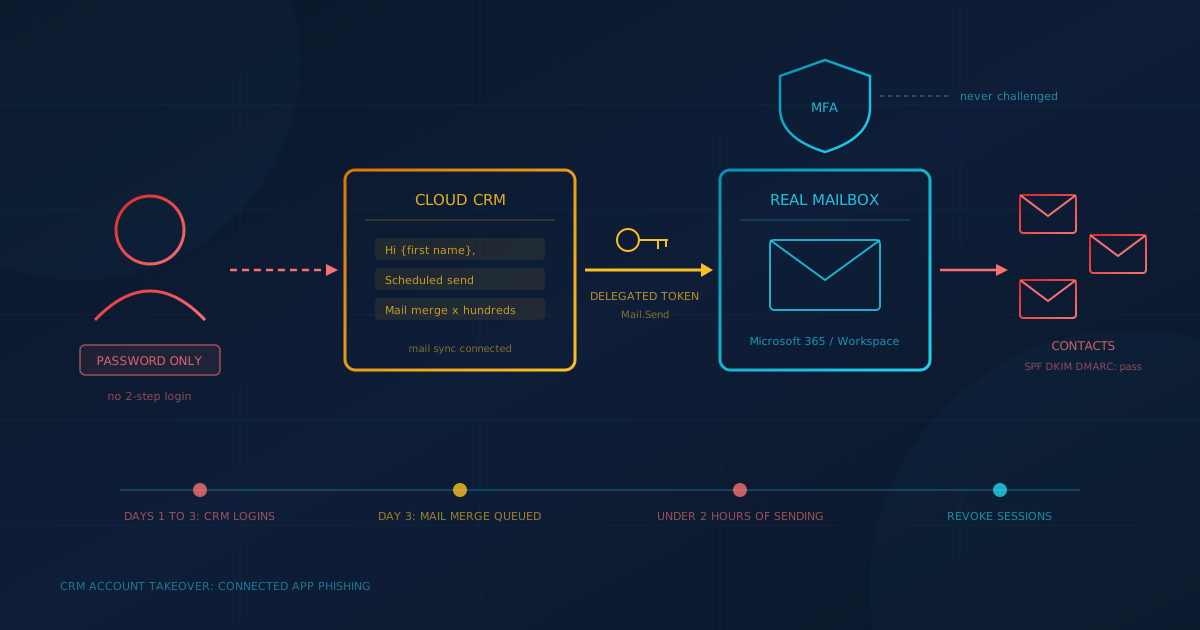
A CRM account takeover can send phishing from your real Microsoft 365 mailbox without the attacker ever signing in to Microsoft 365. In a recent case Cyber Unit investigated, an attacker logged in to a small-business owner's account on a popular cloud CRM using only a password, then used the CRM's own email scheduling to send around 200 phishing messages to the owner's contacts in under two hours. Microsoft 365 MFA, Conditional Access and the recipients' SPF, DKIM and DMARC checks saw nothing wrong, because every message really was sent from the owner's own mailbox.
This matters to small and mid-sized businesses in Canada and the United States because connecting Microsoft 365 or Google Workspace to other tools is now routine. CRMs, scheduling tools, e-signature platforms, help desks and AI assistants all ask to read or send mail on a user's behalf. Each of those connections holds a token that can act as that person. Your mailbox is then only as well protected as the weakest login among the apps connected to it.
What happened in this CRM account takeover?
Over about three days, someone signed in to the owner's CRM account with only a password, from several locations abroad, and chose to have the CRM remember the device. How they got the password is unknown. On the third day they built a personalised mail merge asking contacts to confirm billing details and scheduled it to hundreds of contacts. The CRM then sent it through its existing Microsoft 365 mail connection, one or two messages a minute.
- Access: Several people in the business used the same CRM login, some of them from abroad, so sign-ins from unfamiliar places did not stand out.
- Staging: The message opened with the recipient's first name and read like a routine reply, which is what made the billing pretext believable.
- Detection: Out-of-office replies and bounces landing in the owner's inbox raised the alarm about 30 minutes in. The CRM also emailed a new-device sign-in alert.
- Noise: At the same time, the owner's Microsoft 365 account was being hit by a password spray that failed every time, and separate consent-phishing lures spoofing the company's own domain were quarantined by its inline email security. Neither turned out to be the way in.
- Stop: Sending stalled after about an hour and 45 minutes (the cause is not confirmed). Roughly 40 minutes later, a "Revoke sessions" action in Microsoft Entra cut off the CRM's access, and several hundred more queued copies could not be sent.
Why didn't MFA or Conditional Access stop it?
The attacker never signed in to Microsoft 365. They signed in to the CRM, and the CRM already held a delegated Microsoft Graph permission to send mail as the owner, kept alive with a refresh token. Microsoft Entra checks its policies when a token is issued or refreshed, but nothing looked different: same app, same vendor servers, same user. The CRM login, protected by a password alone, was the real front door.
The permission involved is ordinary. Microsoft's Graph permissions reference describes delegated Mail.Send as "Send mail as a user" and lists it as not requiring admin consent. Microsoft's guidance on refresh tokens says the default lifetime is 90 days for most apps, and that each refresh token replaces itself with a fresh one on every use. An integration that syncs every hour can keep that access going for months without the user ever seeing a prompt.
This is a cousin of the patterns we covered in the ConnectWise Cloud Backup breach, where a vendor credential exposed Microsoft 365 tenants without anyone being phished, and in our guide to token theft, where long-lived OAuth and refresh tokens are one of the main routes around MFA. The difference here is that nobody stole a token. The attacker simply borrowed the app that already had one.
Why did the phishing pass SPF, DKIM and DMARC?
SPF, DKIM and DMARC answer a narrow question: was this message sent by a server the domain authorizes, and did it arrive unaltered? Here the honest answer was yes. Microsoft Graph hands the message to Exchange Online, which sends it from the user's real mailbox, so it carried the company's normal authentication. To each recipient it looked like a reply from someone they already did business with.
Microsoft's overview of email authentication describes SPF as specifying the servers authorized to send for a domain, DKIM as a signature that shows the message was not altered, and DMARC as the policy for messages that fail those checks. None of the three judges whether the sender's account is being misused. The Graph sendMail documentation confirms that app-sent mail goes out through Exchange Online and is saved in the user's Sent Items folder by default.
How did Cyber Unit trace the phishing to the CRM?
The first assumption was a compromised Microsoft 365 account. The Microsoft 365 logs ruled that out: no successful sign-ins from unfamiliar locations, and no new MFA methods, app consents, inbox rules, forwarding or mailbox permissions. Message trace and mailbox audit records showed the phishing was submitted by a cloud service calling Microsoft Graph, not by a device or mail client, matching the CRM's own routine automated emails.
The CRM was the only third-party app holding delegated mail access for that mailbox, and its token refreshes came only from the vendor's usual infrastructure, which pointed to abuse inside the CRM rather than a stolen token. The CRM's own device history then confirmed the foreign sign-ins, and its outbox still held the queued copies. Three lessons for anyone investigating a similar case:
- Token logs do not show volume. The integration's non-interactive sign-ins showed its normal hourly refresh pattern on the day of the attack. Hundreds of send calls produced no visible spike. The evidence was in Exchange message trace and the mailbox audit log.
- Do not rely on Send audit records alone. We found no Send audit entries for the app-sent phishing, while the owner's own Outlook sends were recorded. We have not established why, so treat a missing Send record as inconclusive.
- Expect audit lag. Audit data arrived a couple of hours behind events, so the out-of-office replies were the fastest signal available.
Who is at risk from connected-app phishing?
Any business is exposed if someone has connected a Microsoft 365 or Google Workspace mailbox to a CRM, marketing, scheduling, help desk, e-signature or AI tool that can read or send mail. Both platforms allow this by default. Microsoft says that, by default, a user can consent to allow an app to access their mailbox, and Google's default for unconfigured third-party apps is to allow users to access any of them.
The same pattern has played out at scale. In August 2025, Google Threat Intelligence Group reported that an attacker used stolen OAuth tokens for the Salesloft Drift "Drift Email" integration to access email from a very small number of Google Workspace accounts, and that only accounts configured to integrate with Drift were exposed. The Hacker News reported that Google revoked the OAuth tokens granted to the Drift Email application and disabled the integration with Google Workspace while it investigated. Our analysis of the Vercel breach covers a similar story involving an AI tool's Google Workspace OAuth app.
How do you revoke a compromised integration?
In Microsoft 365, start with Revoke sessions on the affected user in the Microsoft Entra admin center. Microsoft says this invalidates all refresh tokens issued to applications for that user, so the integration cannot get new access tokens. It does not remove the app's consent. Anyone who reconnects the integration restores its access, including any emails still queued inside the SaaS app, so clear that queue first.
- Revoke sessions. In the Entra admin center, open the user and select Revoke sessions, or use the revokeSignInSessions API. Microsoft notes a delay of a few minutes, and its emergency access guidance says access tokens already issued last one hour by default.
- Clear the vendor-side queue. Delete scheduled emails, sequences and automations in the SaaS app before anyone reconnects the mailbox.
- Lock down the SaaS login. Reset its password, sign out all other sessions and remembered devices, turn on 2-step verification or single sign-on, and review its users, automations and API tokens.
- Remove the consent if the app is untrusted. Microsoft's guidance on remediating illicit consent grants shows how to remove an app from a user's Applications page in Entra. Permissions on the User consent tab can't be revoked in the portal and need PowerShell or Graph, and revoking does not stop a user from consenting again.
- Warn the recipients. A short note from the real mailbox, with recipients in BCC, stops contacts from acting on the phish.
In this case the CRM stayed connected for the rest of the staff who rely on it, and only the affected user's integration was left disconnected until the queue was purged and the account was secured. A per-user Conditional Access block on the app was the fallback. Decisions like that go faster when they are made in advance, which is the point of incident response planning before something happens.
What should you check in Microsoft 365 this week?
Find every app that can send or read mail on someone's behalf, make sure each one sits behind MFA or single sign-on, and stop new grants from happening without review. Most of this takes minutes in the Entra admin center. For US federal agencies, CISA's BOD 25-01 required configurations already mandate restricted user consent and an admin consent workflow.
- Audit apps with mail access. In Entra, go to Enterprise apps, then All applications, open each third-party app and check Permissions, including the User consent tab. Look for Mail.Send, Mail.ReadWrite and Mail.Read. To check one person, open the user and select Applications.
- Require MFA or SSO on every SaaS app that holds a mailbox token. Where the app supports it, sign in through Microsoft Entra so its login is covered by your MFA and Conditional Access policies. Microsoft says Conditional Access can target any Microsoft Entra integrated application. Give each person their own named login rather than a shared one.
- Restrict user consent and turn on the admin consent workflow. Set user consent in Entra's user consent settings, then enable the admin consent workflow so staff can request apps for review. Microsoft notes that existing grants stay in place, so this does not replace the audit above.
- Review non-interactive sign-ins and app activity. In the Entra sign-in logs, filter non-interactive user sign-ins by application and look for apps you do not recognize. Pair this with Exchange message trace, because token refreshes will not reveal a burst of outgoing mail.
- Set outbound limits and alerts. Microsoft's outbound spam policies let you cap external recipients per hour per mailbox, and default alerts such as "Suspicious email sending patterns detected" notify admins about unusual outbound activity.
- Treat sudden bounces as an alarm. Tell staff to report a burst of out-of-office replies or bounces right away. In this case it was the first warning anyone received.
What is the Google Workspace equivalent?
Google Workspace has the same exposure and its own controls. In the Admin console, go to Security, then Access and data control, then API controls. Manage App Access lists the apps that have accessed Google data and the services they request, such as Gmail. From there you can mark apps Trusted, Limited, Specific Google data or Blocked, and restrict high-risk Gmail scopes, including gmail.send.
- Decide what happens with unconfigured apps. Google's default lets users connect any third-party app. You can limit unconfigured apps to basic sign-in information or block them entirely. CISA's BOD 25-01 lists not allowing users to access unconfigured third-party apps as a required configuration for agencies.
- Cut off one user's app. Open the user, select Security, then Connected applications, and remove the app. Google's user security settings help warns this is temporary: once the user signs in to the app again, access is restored. To make it stick, block the app in API controls.
- Review OAuth activity. Google's OAuth log events record each time a third-party app is authorized, and API call events are available on some editions.
- Secure the SaaS login too. As in Microsoft 365, the app's own password, 2-step verification and shared accounts decide how safe the Gmail connection is.
Our Google Workspace security checklist walks through these API control settings alongside the rest of a small-business baseline.
What should you ask your IT provider?
One question covers most of this: "Which third-party apps can send or read email as our people, and is every one of them protected by MFA or single sign-on?" A provider who can produce that list from Entra or the Google Admin console, with an owner and a last-used date for each app, is on top of it. If the answer is a long pause, the pause is the finding.
If you want help answering it, Cyber Unit's cybersecurity services include email security for Microsoft 365 and Google Workspace, along with incident response and containment, the two kinds of work this case needed.
Your mailbox is only as strong as its weakest connected app
Every integration that can send mail as a person is part of that person's mailbox, whether or not it is protected the way Microsoft 365 or Google Workspace is. In this case strong Microsoft 365 controls held, and the phishing still went out, because the weak point was a password-only CRM login two steps away. Inventory those connections, put them behind MFA or single sign-on, and decide in advance how you would cut one off.
If you are not sure where your business stands, our free cybersecurity assessment covers 22 security areas in under 5 minutes and gives you prioritized recommendations to start with.
This article is intended for general informational purposes only and does not constitute professional security, legal, or compliance advice. The case described is based on a Cyber Unit investigation, with client details, locations, indicators and vendor names removed, and figures rounded. Product settings and defaults are based on Microsoft, Google and CISA documentation as of the date of publication and may change. Organizations should consult qualified cybersecurity professionals before making operational changes based on this article.