
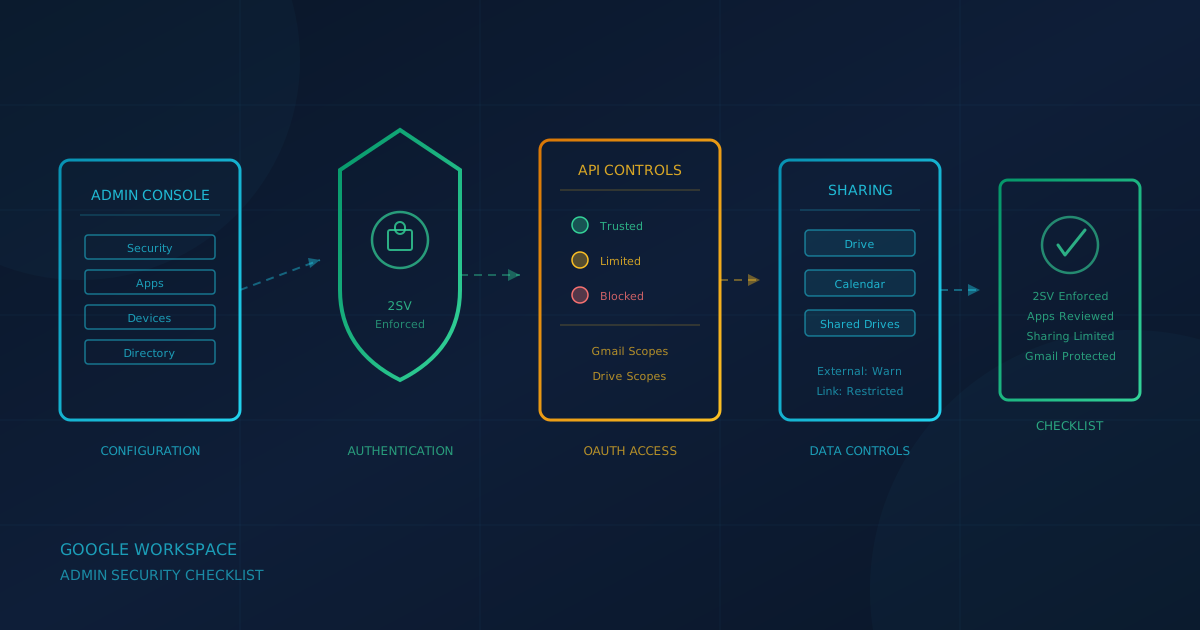
Google Workspace security for small business starts in the Admin console, where a handful of settings determine whether your company data stays protected or sits exposed. Google publishes a Security checklist for small businesses (1-100 users) that covers the baseline: 2-Step Verification, backup admin accounts, Gmail scanning, Drive sharing defaults, and calendar restrictions. The same settings apply whether you are based in Canada or the United States.
This article walks through each section of Google's checklist and the related Admin console settings, so you can confirm what is already configured in your environment and identify gaps.
What does Google recommend in its security checklist for small businesses?
According to Google's Security checklist for small businesses (1-100 users), the core recommendations are: use unique passwords, require 2-Step Verification for admins and users who handle sensitive data, add recovery information to admin accounts, generate backup codes, create a second super admin account, and keep super admins signed out when not performing admin tasks. For Gmail, Google recommends enabling enhanced pre-delivery message scanning and additional malware screening. For Drive, the checklist says to turn off link sharing by default and warn users before they share externally. For Calendar, restrict external sharing to free/busy information only.
These are recommendations that an administrator must configure in the Admin console.
How do I enforce 2-Step Verification for all users?
According to Google Workspace Admin Help, you enforce 2-Step Verification (2SV) by going to Security, then Authentication, then 2-step verification in the Admin console. Select your top-level organizational unit to apply the setting to all users. Under Enforcement, select On (or choose a specific start date). Under Methods, choose the allowed verification methods. Google recommends security keys as the strongest method and discourages SMS codes, which can be intercepted.
For admin accounts specifically, Google's security health recommendations state: "Enforce two-step verification for all admin accounts, and under Select allowed 2-step verification methods, choose Only security key." This is the strongest protection against MFA bypass attacks that steal codes or session tokens.
Google is also rolling out mandatory 2SV for admin accounts. According to Google's announcement, "Google will soon require all administrator accounts to have 2-Step Verification (2SV) enabled." The announcement states: "The enforcement will be rolled out gradually over the coming years. Enforcement is now being implemented for organizations with Workspace for Education, Workspace for Nonprofits, Cloud Identity, Android Enterprise, and organizations using a Workspace Enterprise edition with a third-party single sign-on (SSO) provider." You should enable 2SV for admin accounts before Google enforces it.
How many super admin accounts should we have?
Google's small business security checklist explicitly states: "A business should have more than one super administrator account, each managed by a separate person." This ensures that if your primary super admin account is lost, locked out, or compromised, a backup super admin can perform critical tasks while the primary account is recovered. The checklist also recommends that super admins sign in only when performing specific administrative tasks and then sign out. For day-to-day work, use an account with limited admin roles.
How do we control which apps can access Gmail and Drive?
Third-party OAuth app access is one of the most overlooked settings in Google Workspace. As we covered in the Vercel breach analysis, a compromised third-party app with OAuth access to your tenant can expose company data without touching user passwords or MFA.
According to Google Workspace Admin Help, you manage third-party app access by going to Security, then Access and data control, then API controls in the Admin console. Click Manage Third-Party App Access to see which apps have been granted access. You can mark apps as Trusted (full access to all scopes), Limited (access only to unrestricted services), or Blocked.
The more protective configuration is to restrict high-risk scopes. Under API controls, you can restrict access to specific Google services, including Gmail and Drive. When a service is restricted, users cannot grant a new third-party app access to it unless you have explicitly trusted that app. This prevents an employee from connecting an unknown AI tool to company email or files without admin approval.
What Drive sharing settings should we change from the defaults?
Google's small business checklist says: "Make sure only the user who creates a file can open it until they explicitly share the file. Do this by turning Link Sharing off." It also recommends: "Warn users when they share a file with people outside your company."
According to Google Workspace Admin Help, you configure external sharing by going to Apps, then Google Workspace, then Drive and Docs, then Sharing settings, then Sharing options in the Admin console. You can turn external sharing Off entirely, or leave it On with restrictions such as limiting sharing to trusted domains or requiring a warning before sharing externally.
For shared drives, Google's shared drive settings include an option to uncheck "Allow users outside your organization to access files in shared drives" if you want to prevent external access entirely. You can also prevent shared drive managers from overriding these settings.
The Access Checker setting, also under Sharing options, controls what happens when a user shares a link through Gmail or another Google product. Google's security health page recommends setting Access Checker to "Recipients only" to reduce the risk of data leaks.
What Gmail protection settings should we enable?
According to Google Workspace Admin Help, "By default, Gmail displays warnings, and moves untrustworthy emails to the spam folder." Additional protections are available in the Admin console under Apps, then Google Workspace, then Gmail, then Safety. The advanced security settings include:
- Attachment protection: Additional checks for encrypted attachments from untrusted senders and attachments with scripts. You can choose to move flagged messages to spam, show a warning, or quarantine them.
- Links and external images: Identify links behind shortened URLs, scan linked images for malicious content, and warn users before clicking links to untrusted domains.
- Spoofing and authentication: Protection against domain spoofing based on similar domain names, employee name spoofing, email pretending to be from your domain, and unauthenticated email from any domain.
Google's small business checklist also recommends enabling enhanced pre-delivery message scanning. According to Google Workspace Admin Help, this setting slightly delays message delivery so Gmail can perform additional security checks on suspicious content. You enable it under Apps, then Google Workspace, then Gmail, then Spam, Phishing and Malware.
For email authentication (SPF, DKIM, DMARC), Google's checklist recommends configuring SPF so recipients know your messages are legitimate. Our DMARC guide covers the full implementation path, including how SPF, DKIM, and DMARC work together and why major mailbox providers now require all three for bulk senders.
What endpoint and mobile device settings should we configure?
According to Google Workspace Admin Help, Google endpoint management lets you manage mobile devices and endpoints from the Admin console. Basic mobile management is on by default and provides "core security like hijacking protection"; you can also "set password requirements for managed mobile devices" and "wipe a user's account from a mobile device." Advanced mobile management, which requires users to install a management app, lets you "require stronger passwords, wipe devices remotely, manage iOS apps, use Android work profiles, and more."
Which Google Workspace editions include the security investigation tool?
The security investigation tool and advanced features vary by edition. According to Google Workspace Admin Help, the basic audit and investigation tool lets you view log event data, create reporting rules, and download search results. Premium features, including the security investigation tool with advanced search, pivoting, and activity rules, are supported on Frontline Standard and Frontline Plus, Enterprise Standard and Enterprise Plus, Education Standard and Education Plus, Enterprise Essentials Plus, and Cloud Identity Premium.
According to Google's documentation, starting an investigation directly from the alert center requires these same premium editions: Frontline Standard/Plus, Enterprise Standard/Plus, Education Standard/Plus, Enterprise Essentials Plus, or Cloud Identity Premium.
How should we handle offboarding when an employee leaves?
According to Google Workspace Admin Help, you should suspend an account before deleting it. Suspending blocks the user's access to Google Workspace services, but their email, documents, calendars, and other data are not deleted. You can transfer ownership of Drive files while the account is suspended.
If you delete without transferring data first, Google states that "any data that's not transferred is deleted." Some data is retained for 20 days, during which you can restore the user, but after that window closes, untransferred data is gone.
For businesses that need to retain departed employee data longer, Google Vault Help states: "If a user leaves your organization and you want to continue to retain or hold their data with Google Vault, assign an Archived User license to the user." The same page confirms that "Vault preserves data for suspended accounts."
Does Google Workspace back up our data?
Google Vault is not a backup tool. According to Google's Vault FAQ, "Vault isn't designed to be a backup or archive tool." The FAQ explains: "Restoring data from Vault export files is hard. Vault doesn't have any automated recovery tools."
Vault is designed for retention, legal holds, search, and export, primarily for eDiscovery and compliance. If a retention rule preserves data, you can search for and export it, but you cannot automatically restore it to a user's Gmail or Drive. For protection against human error or ransomware, Google suggests exporting data separately using Data Export or individual user exports.
For Drive, Google states that admins can recover deleted files within 25 days. If the data was subject to Vault retention rules or holds, a Vault user can search for and export it beyond that window, but "you can't directly restore this data to the user's Drive."
This is why keeping at least one backup copy offsite and testing restores regularly remains essential.
Which settings should you check first?
Based on Google's small business security checklist and security health recommendations, these are the settings to review and configure:
- 2-Step Verification: Google recommends enforcing 2SV for admins and users who handle sensitive data. Go to Security, then Authentication, then 2-step verification to enable and enforce it.
- Third-party app access: Google's API controls documentation lets you restrict access to high-risk Google services, so users cannot add an app that requests a restricted service unless you have trusted it. Review which apps have been granted access and mark untrusted apps as Blocked.
- External Drive sharing: Google's checklist recommends warning users before they share externally and turning off link sharing so new files are private until explicitly shared.
- Advanced Gmail protections: Review the Safety settings under Apps, then Gmail, and enable additional attachment, link, and spoofing protections.
- Enhanced pre-delivery scanning: Google's checklist recommends enabling this for additional phishing detection.
- Calendar external sharing: Google's checklist recommends restricting external calendar sharing to free/busy information only.
Walking through the small business security checklist addresses these settings.
A question to ask your IT provider
If you use Google Workspace and have an IT provider or managed service provider handling your configuration, a useful question to ask this week: "Which of our users can approve third-party app access to company Gmail and Drive, and who reviews what apps have been granted access?"
If the answer is "anyone can approve apps" or "we don't review the list," that is the gap to close first. Restricting OAuth scopes and reviewing connected apps is one of the highest-impact controls available, and it costs nothing to configure.
If you are unsure where your business stands on these settings and related security controls, a free cybersecurity assessment can help identify gaps. The assessment takes under 5 minutes, covers 22 security areas, and requires no signup.
This article is intended for general informational purposes only and does not constitute professional security, legal, or compliance advice. Google Workspace settings and features are based on Google Workspace Admin Help documentation as of the date of publication and may change. Menu paths and available settings may vary by Google Workspace edition. Organizations should consult qualified IT professionals before making changes to production Google Workspace environments.