
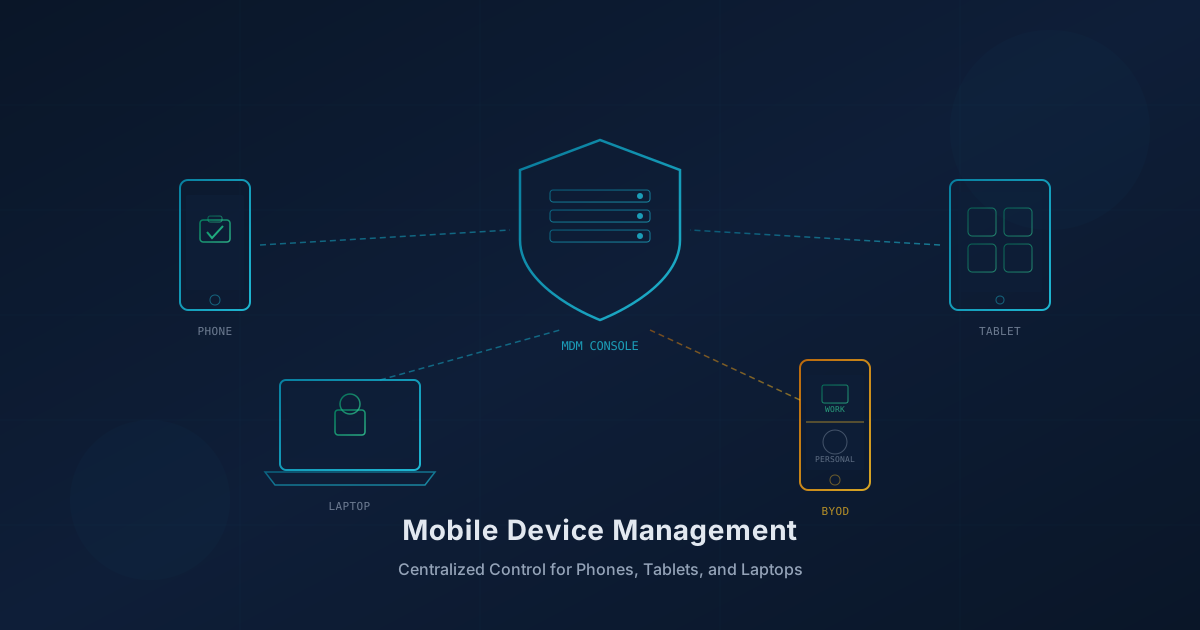
Mobile device management for small business is software that lets you enroll company phones, tablets, and laptops, enforce security policies such as passcodes and encryption, push and remove apps, and remotely lock or wipe a lost device. According to NIST SP 800-124 Rev. 2, "Guidelines for Managing the Security of Mobile Devices in the Enterprise," MDM is a core technology for managing mobile device security, covering "both organization-provided and personally owned deployment scenarios." For a small business, MDM answers a practical question: what happens when an employee loses a phone that has work email on it, or when someone leaves and you need to revoke access?
What does mobile device management do?
MDM software (sometimes called unified endpoint management, or UEM, when it covers laptops and desktops too) provides centralized control over devices that access your business data. The Canadian Centre for Cyber Security's BYOD guidance (ITSM.70.003) explains that MDM "ensures that diverse hardware can be configured consistently and reliably through automated means" and can "limit functionality in favour of a more secure environment, install needed applications or features, and assist in troubleshooting."
Common MDM capabilities include:
- Device enrollment. Employees or IT register devices with the MDM system, either manually or automatically during device setup.
- Policy enforcement. Require a passcode, set minimum password length, mandate device encryption, and block access from devices that do not meet requirements.
- App management. Push approved business apps to devices, prevent installation of unapproved apps, and remove apps when no longer needed.
- Remote lock and wipe. If a device is lost or stolen, lock it immediately or wipe its data remotely.
- Separation of work and personal data. On personal devices (BYOD), MDM can create a managed container that keeps work apps and data separate from personal content.
- Compliance reporting. See which devices meet policy requirements and which do not.
What is the difference between company-owned and BYOD?
Company-owned devices give you full control: you configure them before handing them out, you decide what apps are installed, and you wipe them entirely when an employee leaves. BYOD (bring your own device) is different because the employee owns the hardware, which limits what the organization can reasonably manage.
MDM addresses BYOD through work profiles or containers. Google's Android Enterprise documentation describes the work profile as a way to "securely and privately use the same device for work and personal purposes," where "your organization manages your work apps and data while your personal apps, data, and usage remain private." Apple and Microsoft offer similar separation. The key point: with a properly configured work profile, the organization can wipe or manage the work container without touching personal photos, messages, or apps.
The CCCS guidance recommends that "where possible, we recommend providing corporately owned devices, as your organization has more control over the security controls and configurations applied on devices." But if BYOD is the reality, MDM with proper containerization is the main control that makes it manageable. Our article on BYOD risks and personal device security covers why that separation matters.
What can the employer see on a BYOD phone?
This question matters for employee trust and for legal compliance. The answer depends on how MDM is configured.
With a work profile (container-based management), the organization typically can see and manage:
- Apps installed in the work profile
- Data stored in the work container
- Device compliance status (OS version, whether encryption is enabled, passcode set)
The organization typically cannot see:
- Personal apps, photos, messages, or browsing history outside the work profile
- Personal email or social media accounts
- Detailed location history (unless a specific policy enables it, which is usually disclosed)
Apple, Google, and Microsoft document these boundaries in their platform guides. Employees should receive clear communication about what the organization can and cannot access before they enroll a personal device. The CCCS notes that "employees may be hesitant to provide organizational visibility into their device," so transparency about scope is important.
When does a small business need MDM?
Not every business needs MDM on day one. But several signals suggest it is time to evaluate:
- Employees access work email or apps on phones or tablets. Once corporate data lives on a mobile device, you need a way to protect and revoke it.
- Devices leave the office regularly. A phone lost in a taxi, at a client site, or at home is a device you cannot physically secure.
- Staff turnover requires quick access revocation. Our article on access reviews describes how accounts often outlive employment. MDM lets you wipe the work profile the same day someone leaves.
- Clients, partners, or insurers ask about device controls. Cyber insurance questionnaires and vendor due diligence increasingly ask how you manage mobile devices. MDM provides a documented answer.
- A lost or stolen device would expose sensitive information. If the worst-case scenario is uncomfortable to imagine, MDM is worth the investment.
How does MDM differ from mobile threat defense?
MDM and mobile threat defense (MTD) solve different problems and are often used together.
MDM is about configuration and policy: enroll the device, require a passcode, push apps, wipe if lost. It does not detect phishing links, malicious apps, or risky network connections on the device itself.
MTD is about detecting threats in real time: scanning apps for malware, warning about suspicious network activity, blocking phishing URLs. The CCCS describes MTD as software that "detects real-time on-device application attacks" and notes that "mobile devices such as cell phones and tablets should use MTD/EPP agents to ensure mobile security, as anti-malware alone is not effective on these platforms."
A complete mobile security approach typically includes both: MDM for configuration and control, MTD for threat detection. Our article on mobile devices as a business security blind spot provides broader context on why mobile security often receives less attention than it deserves.
A short rollout checklist
If you decide to implement MDM, the following steps provide a practical starting point:
- Inventory your devices. Identify which phones, tablets, and laptops access business data, and whether each is company-owned or personal.
- Choose an MDM platform. Common options include Microsoft Intune (included with many Microsoft 365 plans), Apple Business Manager paired with an MDM, Google Workspace endpoint management, and third-party tools such as Jamf or Kandji for Apple devices.
- Define your policies. At minimum, require a passcode, enable encryption, and set up remote wipe capability. Decide whether to allow BYOD and, if so, require a work profile.
- Communicate with employees. Explain what MDM does, what you will and will not be able to see, and why it protects both the business and the employee. A written BYOD agreement makes expectations clear.
- Enroll devices. For company devices, use automated enrollment during setup. For BYOD, guide employees through the enrollment process and verify the work profile is active.
- Test remote wipe. Before you need it in an emergency, confirm that you can lock and wipe a test device.
- Integrate with offboarding. When an employee leaves, include MDM wipe in the offboarding checklist. Our guide to employee onboarding and offboarding for IT covers the broader process.
How Cyber Unit can help
Cyber Unit's cybersecurity services include mobile security as part of a comprehensive approach to protecting small and mid-sized businesses. The FAQ on that page lists "Mobile Security" among the services offered. For businesses that need help with device enrollment, policy configuration, and the offboarding process when employees leave, managed IT services include employee onboarding and offboarding, covering "accounts, equipment, and permissions."
If you are unsure where your business stands on mobile device controls and other security areas, a free cybersecurity assessment covers 22 security areas in about five minutes, runs entirely in your browser, and requires no signup.
This article is intended for general informational purposes only and does not constitute professional security, legal, or compliance advice. MDM platform capabilities vary by vendor and configuration. Organizations should consult qualified IT and cybersecurity professionals before implementing device management policies and should ensure their approach complies with applicable privacy and employment laws in their jurisdiction.