
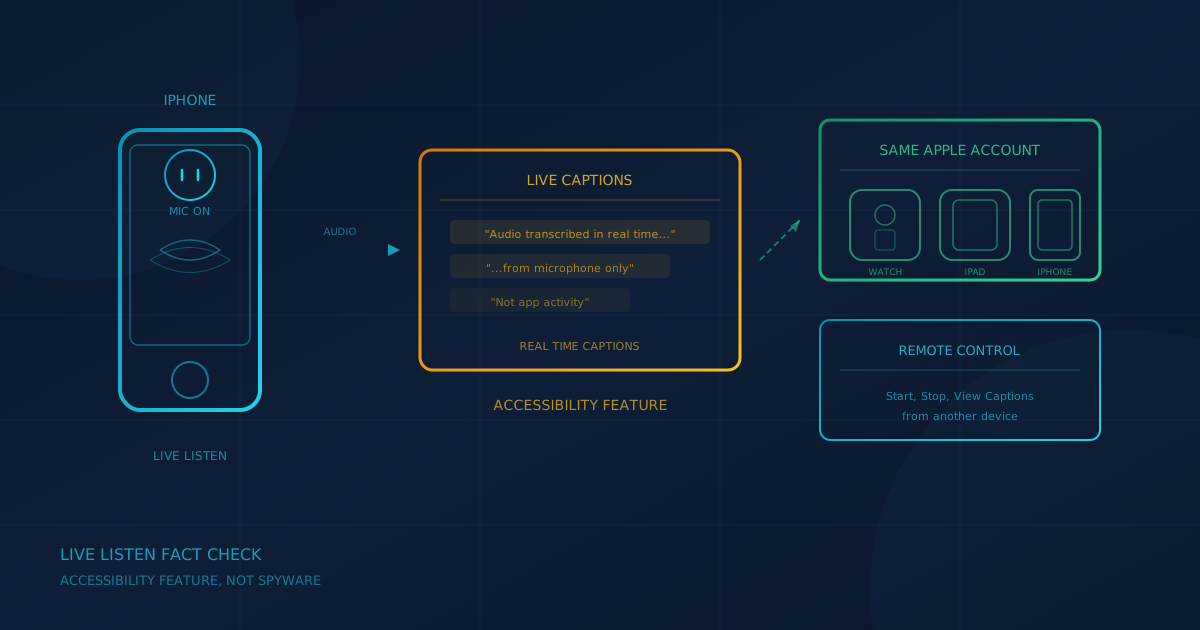
A viral social media post claiming iPhone users should disable a setting called Remote Control because it "keeps transcripts" of everything they do is partly right and mostly wrong. The setting exists, the feature is real, but according to Apple's own documentation, iPhone Live Listen transcripts are not recordings of your phone activity. They are real-time captions of audio picked up by the microphone during an active listening session, and only devices signed into the same Apple Account can view them.
What is iPhone Live Listen?
Live Listen is an accessibility feature Apple introduced to help people who are hard of hearing. According to Apple's iPhone support documentation, Live Listen turns your iPhone into a remote microphone that streams sound to connected AirPods, Beats headphones, or Made for iPhone hearing devices. The intended use is straightforward: place your iPhone near someone speaking and hear their voice more clearly through your connected device, even across a noisy room.
Live Captions, a related feature available in iOS 26 and later, can transcribe the audio your iPhone picks up during a Live Listen session. This text appears in real time so users can read along with spoken content. According to Apple, Live Captions is not available in all languages, countries, or regions, and its accuracy may vary.
Does the Remote Control setting let others view iPhone Live Listen transcripts?
Yes, but only on devices signed into the same Apple Account. According to Apple's watchOS support guide, the Remote Control setting allows a paired Apple Watch or another nearby iPhone or iPad signed into the same Apple Account to start, stop, rewind, and view Live Captions for a Live Listen session. Apple explicitly states: "Your iPhone and Apple Watch must be signed in to the same Apple Account."
Someone using their own Apple device, signed into a different Apple Account, cannot control your session. Only someone who already has a device signed into your Apple Account and is physically nearby can control a listening session. The viral warning leaves out these details.
What does the Remote Control setting actually control?
The Remote Control toggle at Settings, Accessibility, Audio and Visual, Live Listen enables or disables the ability for another device on your Apple Account to control a Live Listen session. With Remote Control on, someone with access to another device signed into your account could start a listening session on your iPhone without picking it up, hear what the microphone picks up, and view real-time captions if Live Captions is enabled.
This is a real microphone capability with legitimate accessibility use cases. As Tom's Guide notes, it is an accessibility tool, not spyware. Apple's documentation describes it as helpful for "situations where you want to discreetly read conversations, need visual reinforcement of audio content, or when environmental factors make it challenging to hear clearly." But it also means a phone left on a desk could be turned into a listening device by someone with access to another device on the same account.
Did iOS 27 turn Remote Control on automatically?
This claim is unverified. Apple's setup documentation tells users to turn Remote Control on as part of setting up Apple Watch as a controller for Live Listen, and Totally the Bomb found nothing in Apple's documentation showing that installing iOS 27 silently enables it. The capability also predates iOS 27: Apple announced Live Listen controls for Apple Watch with watchOS 26 on June 9, 2025.
Discovering Remote Control turned on reveals only its present state, not when or how it was turned on.
Where are Live Listen transcripts stored?
Apple's support documentation does not state where Live Captions text from a Live Listen session is stored or how long it is retained. The captions appear in real time on the device running the session and on any connected device viewing them. This is different from Siri transcripts, which Apple says are linked to a rotating device identifier and may be kept for up to two years, as we covered in our guide to Siri privacy.
If Apple documents retention details for Live Listen captions in the future, this section will be updated.
What is the real risk for businesses?
The risk is not that Live Listen secretly logs everything you do. The risk is a shared or compromised Apple Account. Consider these scenarios:
- Shared Apple Account on company phones. If your business issues iPhones signed into a single shared Apple Account, anyone with a device on that account could potentially start a Live Listen session on another device. This is why Apple recommends Managed Apple Accounts through Apple Business Manager for company devices.
- Family or staff sharing a personal account. If family members or staff share one Apple Account across personal and work devices, those devices can control each other's Live Listen sessions.
- Compromised Apple Account. If someone gains access to your Apple Account credentials, they can sign into a device and potentially start a listening session on your iPhone. Two-factor authentication significantly reduces this risk.
- Lost unlocked device. If your iPhone is lost while unlocked, someone could enable Live Listen and listen through connected earbuds. This is less about the Remote Control setting and more about physical device security.
For businesses managing company or BYOD iPhones, these scenarios highlight the importance of not sharing a single Apple Account across staff devices. As we covered in our guide to BYOD risks, personal devices used for work already create visibility and control challenges. A shared account compounds the problem.
How to check and change the Live Listen setting
To check or disable Remote Control:
- Open Settings on your iPhone.
- Tap Accessibility.
- Tap Audio and Visual.
- Tap Live Listen.
- Turn off Remote Control if you do not want another device on your Apple Account to control Live Listen sessions.
To stop an active Live Listen session, open Control Center, tap the Hearing Devices control, and turn Live Listen off.
How to review devices signed into your Apple Account
According to Apple's support documentation, you can review and remove devices signed into your Apple Account:
- On iPhone or iPad: Open Settings, tap your name at the top, then scroll down to see the device list. Tap any device to view its details or remove it from your account.
- On Mac: Choose Apple menu, System Settings, click your name, then scroll to the device list.
- On the web: Sign in at account.apple.com, select Devices, and review the list.
Remove any device you do not recognize. If you suspect unauthorized access, Apple's Safety Check feature (Settings, Privacy and Security, Safety Check) can help you review and stop sharing with people, apps, and devices in one place.
Steps for businesses with company or BYOD iPhones
For businesses managing mobile devices, consider these steps:
- Do not share one Apple Account across staff devices. If you issue company iPhones, use Managed Apple Accounts through Apple Business Manager, or have each employee sign in with their own personal Apple Account on their assigned device.
- Enable two-factor authentication. According to Apple, two-factor authentication is the default for most accounts and significantly improves account security by requiring a verification code from a trusted device when signing in on a new device.
- Review devices on company accounts regularly. If your business uses any shared accounts for specific purposes, review the device list and remove devices that should no longer have access.
- Use mobile device management (MDM). MDM tools can enforce security policies, manage app permissions, and remotely wipe work data from devices. Apple Business Manager integrates with MDM services for supervised deployment.
- Turn off Remote Control if Live Listen is not needed. If no one in your organization uses Live Listen for accessibility purposes, disabling Remote Control removes one potential avenue for unintended listening.
A question to ask your IT provider
If your business issues iPhones or allows employees to use personal devices for work, a useful question for your IT lead or managed service provider: "Do any of our staff share an Apple Account across work iPhones, and can you see which devices are signed into company accounts?"
If the answer is uncertain, that is the gap to close. Knowing which devices have access to which accounts is a baseline visibility question.
If you are unsure where your business stands on mobile security and device management, a free cybersecurity assessment can help identify gaps. The assessment takes under 5 minutes, covers 22 security areas, and requires no signup.
This article is intended for general informational purposes only and does not constitute professional security, legal, or compliance advice. Details about iPhone Live Listen, Remote Control, and Live Captions are based on Apple's published support documentation and third-party reporting as of the date of publication and may change with future iOS or watchOS releases. Organizations should consult qualified cybersecurity professionals before making operational changes based on this article.